Book Formatting Templates: Give Every Book a Consistent Style
Choosing fonts and arranging chapter headings can take considerable time. Repeating those decisions for every book takes even longer.
KDP Formatter’s Template Settings let you create, preview and save reusable book styles, giving you a consistent starting point for new projects while leaving room for individual adjustments.
Start with Standard or Styled
KDP Formatter includes two built-in formatting templates:
- Standard provides a straightforward starting point for a clean book interior.
- Styled offers a more decorative approach to chapter openings.
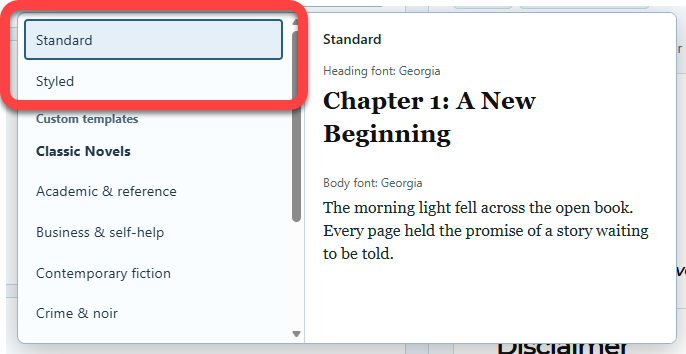
You can customise their formatting or create a named template of your own. Build a style for a particular series, author or type of book, then reuse it when starting another project.
Control Chapter Numbers and Titles Separately
Chapter headings help establish the character of a book. Template Settings give you control over how those headings appear.
A heading such as “Chapter 1: Out of the Underground” can appear as a combined heading or be split into two elements:
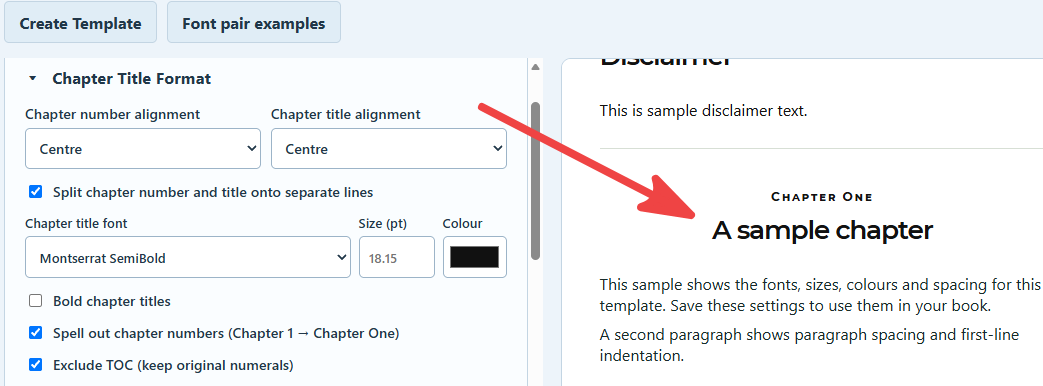
When split, the chapter number and title can have separate fonts, sizes, colours, bold settings and alignment.
Adjust the space between them, add dividers before, between or after the elements, and set the space above the chapter opening. These controls make it possible to create anything from a compact nonfiction heading to a more spacious novel opening.
Set Up Body Text and Other Headings
For print editions, templates can store your preferred body font, size and colour, together with line spacing, paragraph spacing and first-line indentation.
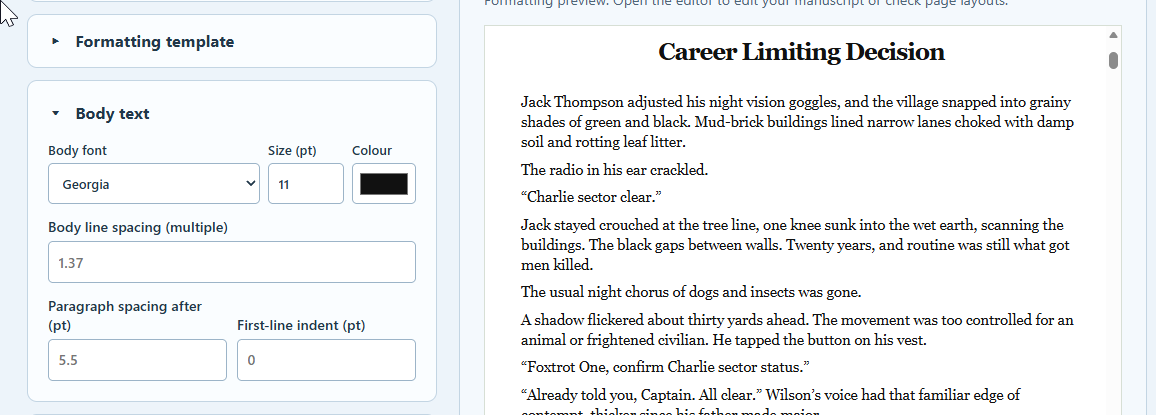
Other heading levels have their own formatting controls, helping you distinguish sections and subsections without losing consistency.
This is particularly useful for nonfiction, instructional books and reference material, where a clear heading hierarchy helps readers navigate the content.
Style More Than the Main Manuscript
A consistent book interior extends beyond its chapters.
Template Settings also cover the appearance of elements such as:
- Title, subtitle and author name
- Quotes, dedications and attributions
- Copyright notices and disclaimers
- Table of contents
- Page numbering
- Print indexes
Set these preferences once, then use them as the foundation for future books.
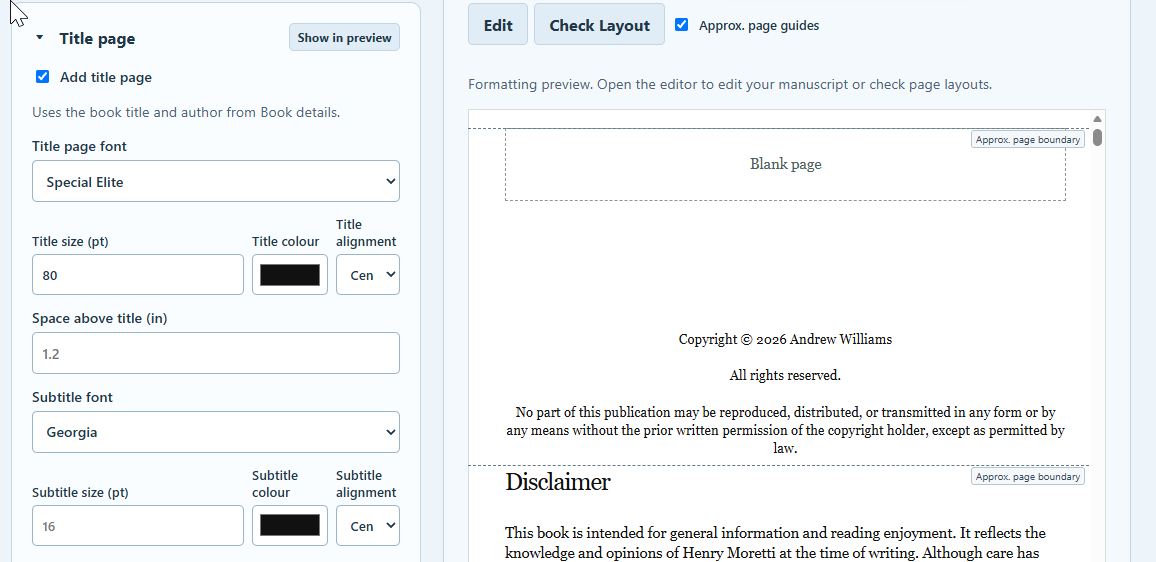
Templates store formatting and layout rather than reusable wording. Book content, metadata, trim size and margins remain part of the individual project. Reusable text belongs in the separate Resources library.
Preview Before You Apply
The sample layout helps you assess your choices while editing a template. It includes different page elements, allowing you to compare chapter headings, body text, front matter, TOC formatting and other settings.
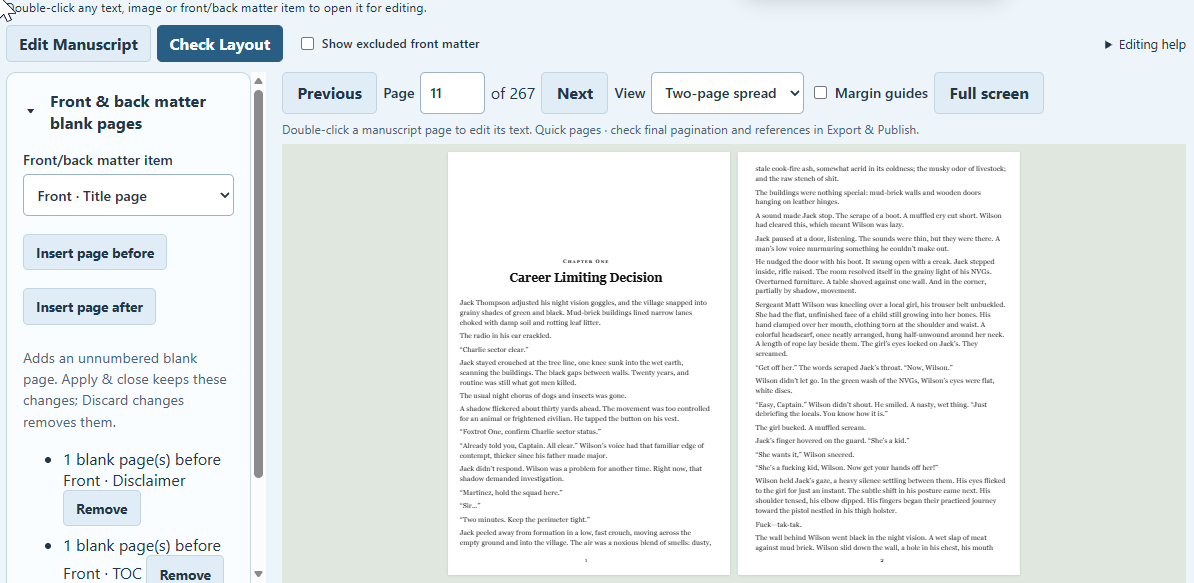
The formatting-template chooser also offers a preview of fonts and chapter layout, helping you recognise a style before selecting it.
Once a template is applied, you can override individual settings for a particular book. Fields using template defaults display the applicable values, making it easier to understand which settings are inherited.
Explore Font Pairings
The font-pair examples screen presents suggested combinations for book interiors, with samples of heading and body text.
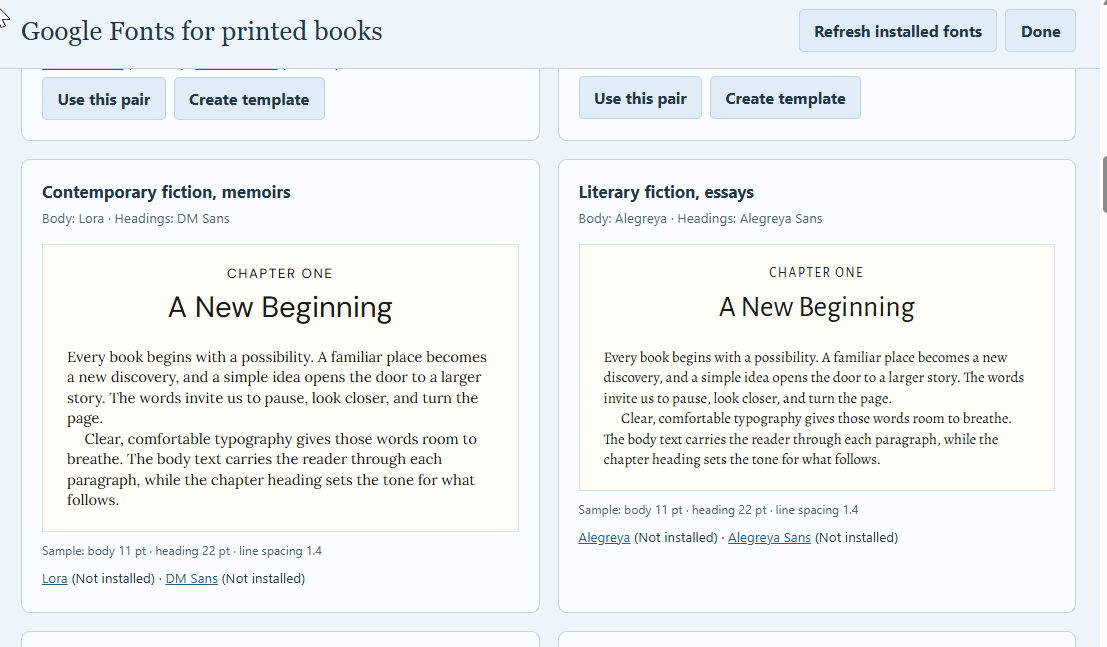
It shows whether each font is installed and identifies templates already using that pairing. When both fonts are installed, you can apply the pair or create a new template using those fonts.
A refresh control lets KDP Formatter recheck after you install additional fonts.
Save Styles for Future Projects
Custom templates are saved in the app’s Templates folder, making them available for reuse across projects. Rename or delete user-created templates directly within Template Settings.
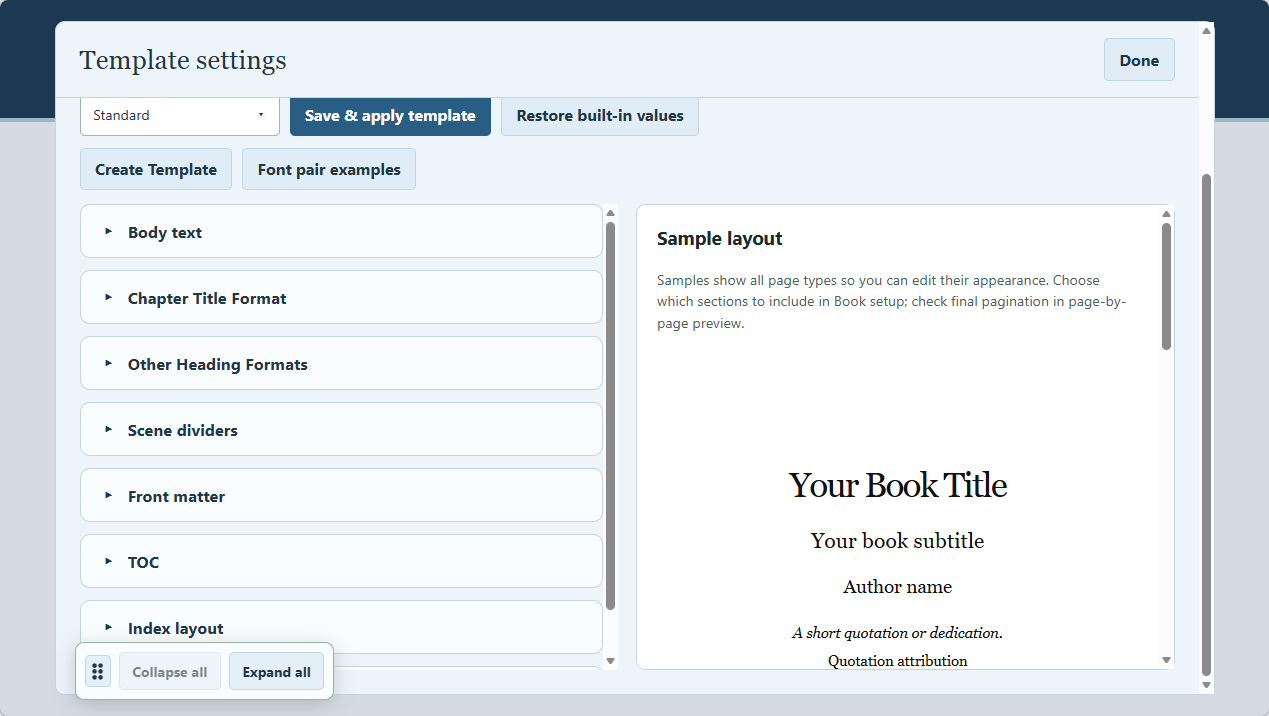
For a series of books, this can reduce repeated setup and help maintain a recognisable visual style.
Kindle, Paperback and Hardcover editions keep their own formatting after their initial setup. Kindle templates retain chapter and heading styling while leaving body-font preferences adjustable by the reader.
Create the style once, reuse it across your books, and refine it where each project needs something different.